Cells are Widget Blueprints
Any Widget Blueprint you parent to Smart Table Cell can be a column.
A column with nothing set draws text, and for most columns that is the answer you want.
Point one at a Widget Blueprint instead and that widget becomes the cell. A progress bar. A button. A health pip, an item icon with a rarity border, or a nested widget you already built.
Making one
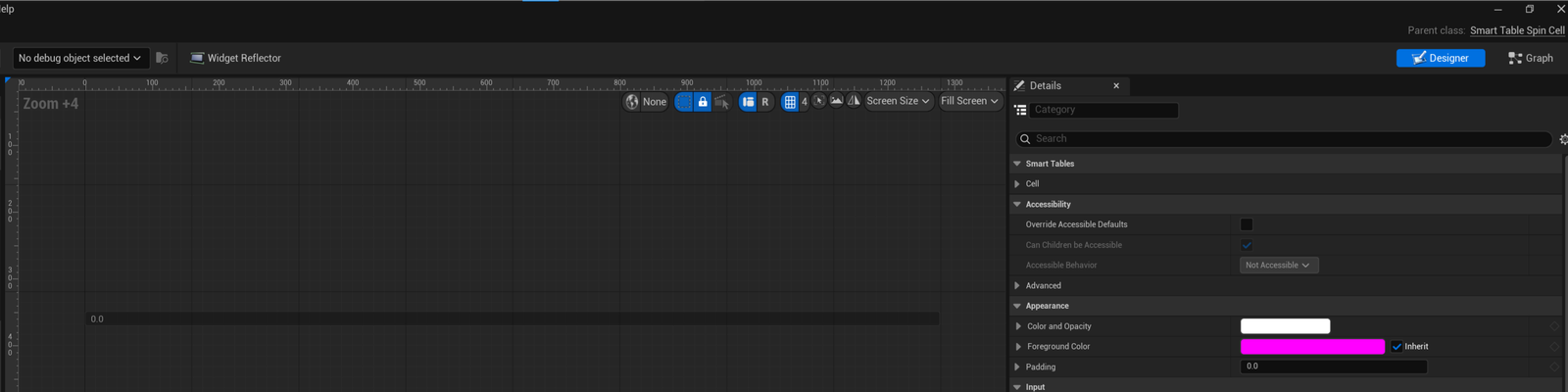
New Widget Blueprint, and for the parent class pick Smart Table Cell instead of User Widget. That is the only thing you do differently. Lay it out in the designer the way you would any other widget.
Handle On Cell Assigned
In the graph, add On Cell Assigned. It fires every time the table hands your widget a row to draw.

These nodes read the context. Get Item is the object for this row. Get Column Id tells you which column you are in, so one cell class can serve several of them. Get Row Index is the row number. Get Table is the table itself, and Get Model is its model. Get Assign Reason says why the cell was filled, and Get Cell Drag Role says what a drag makes of it.
What you get back out of Get Item depends on how you filled the table. After Set Items it is your own object, so cast it and read it. Over a DataTable you get a Smart Table Data Table Row instead, which carries the asset and the row name. That is exactly what the engine's Get Data Table Row node takes.
On Item Set does the same job and hands you the item straight away. Use whichever one reads better in your graph.
Or bind it to a viewmodel
If your items are MVVM viewmodels, the cell needs no graph at all. The table hands each row's item to a function you name, and the cell's bindings draw it.
- Make your item class a viewmodel. In C++ it derives from MVVM View Model Base.
- In the cell's Viewmodels panel, add one of that class and set its creation type to Manual. Unreal gives the cell a function for it, Set and then the viewmodel's name, such as SetStation.
- Compile. Open Class Defaults and pick that function in Item Setter.
- Bind the cell's widgets to the viewmodel's fields, the same way you'd bind any other widget.
The table calls the setter each time the cell gets a row whose item is a different object, before On Cell Assigned fires. When the cell goes back to the pool, it calls the setter with nothing. That way the widget that drew row 4 lets go of row 4 before it draws row 40. A value that changes on the same row calls nothing, because the viewmodel already tells its bindings.
The plugin doesn't link the MVVM plugin to do this. It finds the function by name. So Item Setter takes any function of the cell with one object input, and a Blueprint function of your own works too.
If the name is wrong, or the function takes a class your items aren't, the Output Log says so once and names the fix. The rows then draw with nothing handed over.
Point a column at it
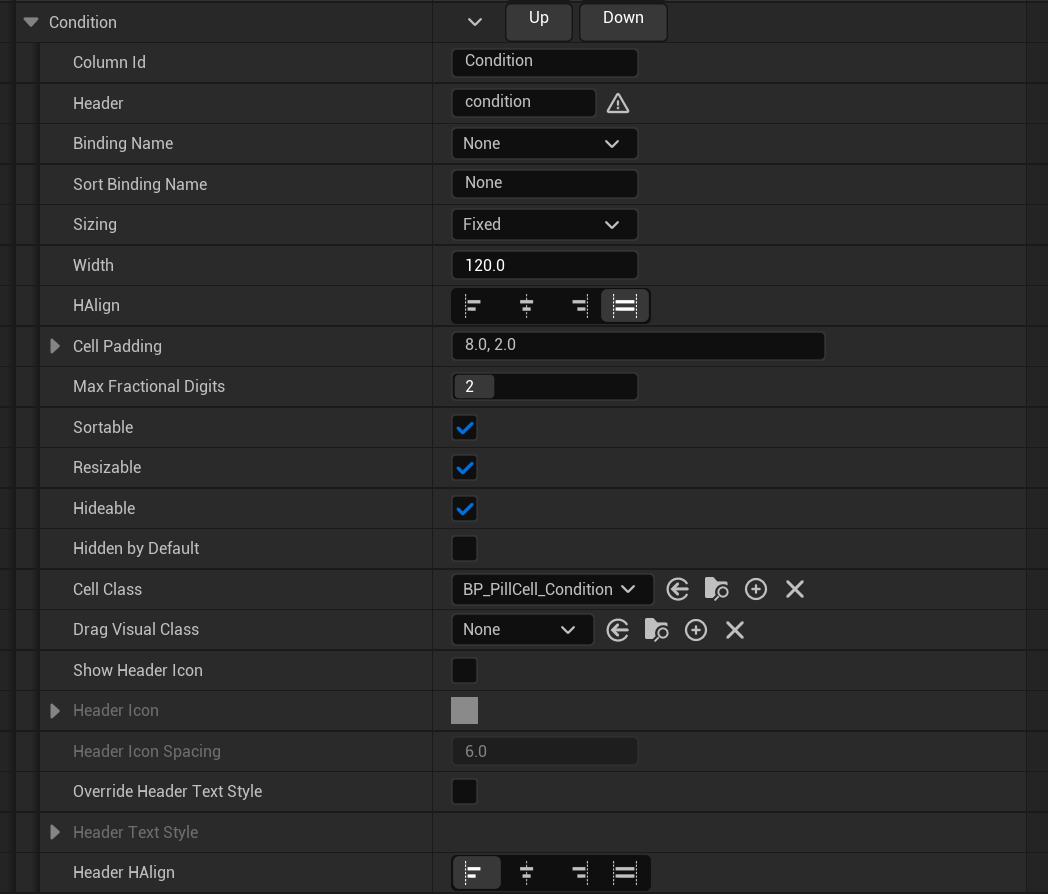
Set Cell Class on the column to your new widget.
Clear what you set
The table does not build one widget per row. It builds a screenful and reuses them, so the widget that drew row 4 gets handed row 40 once you scroll.
So anything you set in On Cell Assigned has to be set every time and not once. Anything you turn on has to be turned off again in On Cell Released.
You can tell when this has gone wrong. The rows flash as you scroll, and the ones that flash have nothing in common. That is an animation somebody started on a high value and never stopped.
What a Widget Blueprint gives you here
Sequencer, because it is a Widget Blueprint. The Pairs demo is a memory game where every cell is a card that flips itself.
Nesting, because a cell is an ordinary widget and can hold the ones you already built.
Input, once Interactive Cells is on. Buttons and sliders inside the cell take the click. Leave it off and the click goes to the row instead.
The built-in one
For a value somebody edits, set Cell Class to Smart Table Editable Cell and build nothing at all. It picks its editor off the property type, so the same class is a number box on a float and a tick box on a bool.
Next: Events